Do Video Quality Enhancers Work? AI Upscaling Truth (2026)

You've seen the before-and-after videos: grainy, blurry footage transformed into crystal-clear 4K. The promise is seductive—click a button and watch your old family videos or low-res smartphone clips become professional-grade content. But do video quality enhancers actually work, or is it all marketing hype?
The answer is more nuanced than a simple yes or no. Modern AI-powered enhancers can produce remarkable results, but only under specific conditions. Understanding when these tools succeed and when they fail helps you set realistic expectations and choose the right approach for your footage.
This article cuts through the marketing to explain how video enhancers actually work, when they deliver on their promises, and when they'll disappoint you. We'll cover the technical reality behind AI upscaling, the hidden costs that most reviews ignore, and practical scenarios where enhancement makes sense versus when it's a waste of time.
The Big Question: Magic or Marketing?
The "Enhance" button in movies shows detectives zooming into pixelated security footage and magically revealing license plate numbers. Real-world video enhancement doesn't work that way. The fundamental limitation is information theory: you can't recover detail that was never recorded. If your camera captured a blurry face at 480p, no amount of AI processing can create a sharp 4K portrait from that source material.
This doesn't mean enhancers are useless. Instead of "recovering" lost information, modern AI tools use generative techniques to predict what higher-quality footage would look like. They analyze patterns, textures, and motion to make educated guesses about missing detail. The quality of these guesses depends entirely on what information exists in your source footage. A well-lit 1080p video with minimal compression can be enhanced dramatically. A dark, heavily compressed 240p video will produce disappointing results no matter which tool you use.
The marketing often obscures this reality. Before-and-after comparisons typically use ideal source material: footage that's already decent quality but just needs upscaling or denoising. When you try the same tools on genuinely poor source material, the results are less impressive. Understanding this distinction helps you evaluate whether enhancement is worth attempting on your specific footage.
How Modern Enhancers Actually Work (The Tech Simplified)
Video enhancement tools fall into two categories: traditional upscaling and AI-powered generative upscaling. Understanding the difference explains why some tools produce better results than others.
Traditional Upscaling: "Stretching" Pixels and Why It Looks Blurry
Traditional upscaling uses mathematical algorithms to stretch existing pixels across a larger canvas. If you have a 1080p image and want 4K, the algorithm takes each pixel and creates four pixels from it using interpolation. The result is larger but not sharper—you're just spreading the same limited information across more pixels.
This approach works reasonably well for simple graphics or when upscaling by small amounts, but it fails with complex scenes. Edges become soft, textures lose definition, and the overall image looks blurry because no new detail is being created. The algorithm is essentially guessing what color pixels should be based on neighboring pixels, which produces smooth but inaccurate results.
Most basic video players and free online tools use this traditional approach. It's fast and doesn't require powerful hardware, but the quality improvement is minimal. You might notice the video is larger, but it won't look significantly better on a large display.
AI Generative Upscaling: How Neural Networks "Guess" What Detail Should Look Like
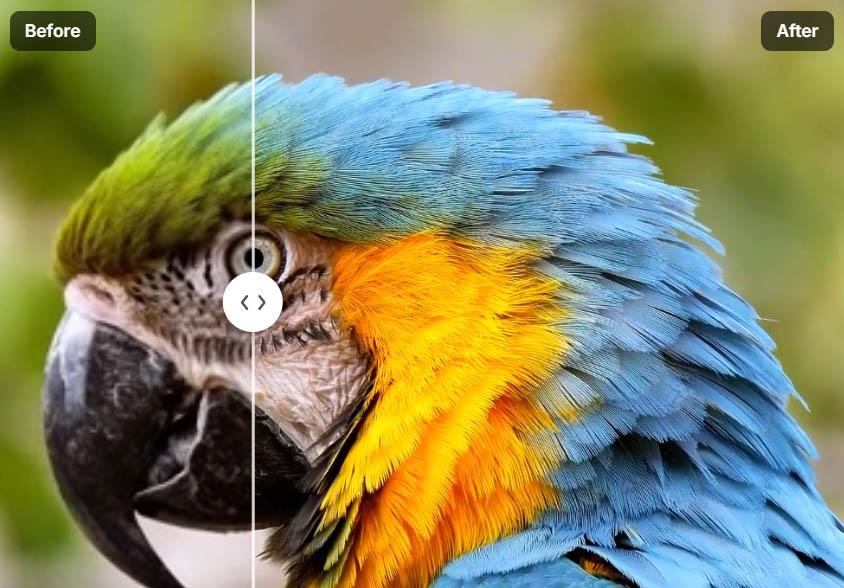
AI upscaling uses neural networks trained on millions of video frames to predict what higher-resolution footage would look like. Unlike traditional upscaling, which stretches pixels, AI upscaling analyzes patterns and textures to create new detail. The neural network has learned from training data what a blade of grass, a human eyelash, or fabric texture should look like at different resolutions.
When you feed a low-resolution frame to an AI upscaler, it doesn't just stretch pixels. Instead, it analyzes the content: "This looks like a face, so I'll add detail that matches how faces appear in high-resolution training data." The AI recognizes patterns and generates detail that fits those patterns, creating results that look more natural than simple pixel stretching.
The quality depends on the training data and the specific model. Some AI models are trained specifically on faces, others on landscapes, and others on general content. Tools like Video Quality Enhancer use multiple specialized models and automatically select the best one based on your content type, ensuring optimal results for different scenarios.
Multi-Frame Analysis: Using Temporal Information for Better Results
The most advanced enhancement tools don't process frames in isolation. Instead, they analyze multiple frames together to understand motion and consistency. This temporal analysis allows the AI to use information from surrounding frames to better reconstruct the current frame.
If frame 10 is blurry but frames 9 and 11 are sharp, the AI can use information from the sharp frames to enhance frame 10. This works because most video content has temporal consistency—objects don't randomly change between frames. A person's face in frame 9 will look similar in frame 10, so the AI can use that consistency to make better predictions.
Temporal consistency algorithms also prevent flickering and artifacts that plague single-frame processing. When each frame is enhanced independently, you can get frame-to-frame variations that create a flickering effect. Multi-frame analysis ensures smooth, stable results by maintaining consistency across the entire sequence. This is why professional tools like Video Quality Enhancer process videos with full temporal awareness, delivering flicker-free enhancement that maintains stability throughout.
When They Work (The "Sweet Spots")
Video enhancers excel in specific scenarios where the source material has enough information for the AI to work with. Understanding these sweet spots helps you identify when enhancement is worth attempting.
Scenario A: Upscaling 1080p to 4K for Large-Screen Displays
Modern 4K displays are common, but much content is still produced in 1080p. Upscaling 1080p to 4K is one of the most reliable enhancement scenarios because 1080p footage contains substantial detail that AI can use to predict what 4K would look like. The 2x upscaling factor is within the safe range where AI predictions remain accurate.
This works particularly well for content that will be viewed on large screens where the difference between 1080p and 4K is noticeable. The AI has enough source information to create realistic detail, and the upscaling factor isn't so extreme that it produces artifacts. The key is starting with decent source material—1080p footage that was originally recorded at high bitrate and minimal compression.
Scenario B: Removing Sensor Noise from Low-Light Smartphone Footage

Smartphone cameras struggle in low light, producing grainy, noisy footage. AI denoising tools excel at removing this sensor noise while preserving detail. The AI can distinguish between noise (random, frame-to-frame variations) and actual detail (consistent across frames), allowing it to remove one while keeping the other.
This works because noise has specific characteristics: it's random, changes between frames, and appears as grain or color speckles. Real detail is consistent and follows patterns. By analyzing multiple frames, the AI identifies what's noise and removes it selectively. The result is cleaner footage that looks more professional, especially when the original recording had good lighting but was limited by the camera's sensor capabilities.
Scenario C: Restoring 8mm or VHS Tapes (Close-Ups Work Best)
Old analog footage often has good detail that's obscured by format limitations, noise, and color degradation. AI enhancement can recover this detail effectively, especially in close-up shots where faces and objects fill the frame. The AI recognizes patterns like facial features, fabric textures, and object edges, then enhances them based on training data.
Close-ups work better than wide shots because they contain more consistent detail. A person's face has predictable features that the AI can enhance accurately. Wide shots with many small objects are more challenging because the AI has less information per object to work with. The key is that the original analog footage captured real detail—the enhancement is revealing what was already there, not creating something from nothing.
Scenario D: Fixing Color Fading and Minor Compression Artifacts

Over time, analog footage can lose color saturation and develop color shifts. Digital footage can suffer from compression artifacts that create blocky patterns or banding. AI tools can correct these issues effectively because they're fixing problems rather than creating new detail.
Color correction algorithms analyze the overall color distribution and restore natural tones. Compression artifact removal identifies blocky patterns and smooths them while preserving real detail. These corrections work well because they're addressing specific, identifiable problems rather than trying to upscale extreme low-resolution content.
When They Fail (The "Red Flags")
Not all footage is suitable for enhancement. Understanding when enhancers fail helps you avoid wasting time and money on footage that won't improve.
Heavy Motion Blur: AI Turns Blur into Weird Textures
Motion blur occurs when objects move faster than the camera's shutter speed can capture. The blur represents information that was never recorded—there's no sharp version of that moment to recover. When AI tries to enhance heavily blurred footage, it attempts to sharpen the blur itself, which creates strange, vibrating textures that look worse than the original.

The AI sees blur patterns and tries to interpret them as detail, leading to artifacts like wavy lines, distorted edges, and unnatural sharpening. Heavy motion blur is one of the few scenarios where enhancement can actually make footage look worse. If your source material has significant motion blur, enhancement won't help and may introduce new problems.
Out-of-Focus Shots: You Can't Fix a Lens That Wasn't Focused
Focus issues are fundamentally different from resolution or noise problems. If the lens wasn't focused on your subject, the camera never captured sharp detail—it only recorded a blurry version. No amount of AI processing can create sharp detail from out-of-focus footage because that detail doesn't exist in the source material.
AI sharpening algorithms can enhance edges and increase contrast, which might make slightly soft footage appear sharper. But genuinely out-of-focus footage will remain blurry. The AI might try to sharpen the blur, but this creates halos and artifacts rather than recovering lost detail. The only solution for out-of-focus footage is to reshoot with proper focus.
Extreme Low Resolution (144p/240p): AI Begins to "Hallucinate"
When source footage is extremely low resolution, the AI has very little information to work with. At resolutions like 144p or 240p, the AI starts making guesses based on minimal data, which can lead to "hallucinations"—details that look plausible but aren't actually in the source material.
These hallucinations can manifest as distorted facial features, extra objects that weren't there, or patterns that the AI invents to fill gaps. For example, a logo on a shirt might become a weird symbol because the AI is trying to "sharpen" a pattern it doesn't recognize. A person's face might gain an extra eye or distorted teeth because the AI is guessing what facial features should look like with insufficient source information.
The rule of thumb: if your source footage is below 480p, enhancement results become unreliable. The AI needs enough pixels to recognize patterns accurately. Below this threshold, it's guessing more than analyzing, which produces unpredictable and often incorrect results. Understanding the threshold of recovery helps you determine when enhancement is worth attempting.
The "Original Bitrate" Reality Check
Even if your video is 1080p, the bitrate matters more than resolution for enhancement potential. If your source video is under 2 Mbps, even the best AI will struggle because there isn't enough data for the AI to analyze. Low bitrate means heavy compression, which removes detail that the AI needs to make accurate predictions.
Check your source video's bitrate before attempting enhancement. High-resolution footage with low bitrate often looks worse after enhancement because the AI is trying to create detail from heavily compressed, information-poor source material. You need substantial data in your source footage for the AI to grab onto and enhance effectively.
The Hidden Costs of Enhancement
Most reviews focus on before-and-after quality comparisons but ignore the practical costs of video enhancement. Understanding these hidden costs helps you make informed decisions about whether enhancement is worth pursuing.
Time: Why a 5-Minute Video Might Take 10 Hours to Render
AI enhancement is computationally intensive. Processing a 5-minute video can take hours depending on your hardware and the enhancement settings. High-quality upscaling with temporal analysis requires analyzing every frame and its surrounding frames, which multiplies the processing time.
The time cost increases with resolution, frame rate, and enhancement complexity. A 1080p to 4K upscale with denoising and frame interpolation might take 2-4 hours per minute of footage on consumer hardware. Professional tools running on dedicated GPUs are faster, but still require significant time investment. Web-based tools like Video Quality Enhancer offload this processing to cloud servers, eliminating the time you spend waiting but requiring an internet connection and potentially longer queue times during peak usage.
Hardware: The Need for Dedicated GPUs
Desktop enhancement software like Topaz Video Enhance AI requires powerful hardware, specifically NVIDIA or Apple Silicon GPUs. The neural network processing happens on the GPU, and without a capable graphics card, processing times become impractical. A modern gaming GPU can process enhancement 10-20 times faster than a CPU alone.
This hardware requirement means enhancement isn't accessible to everyone. Older computers or systems without dedicated GPUs either can't run the software effectively or require prohibitively long processing times. Cloud-based solutions eliminate this barrier by handling processing on remote servers, making enhancement accessible regardless of your local hardware capabilities. For a detailed comparison of tools based on hardware requirements, see our comprehensive guide.
Storage: Why Enhanced Files Are Often 5x to 10x Larger
Enhanced videos are significantly larger than originals. A 1080p video upscaled to 4K with high bitrate can be 5-10 times the file size of the original. Higher resolution means more pixels, and maintaining quality requires higher bitrates to represent all that detail properly.
This storage cost compounds when processing multiple videos or long footage. A 1GB original might become a 5-10GB enhanced file. If you're processing hours of footage, storage requirements quickly become substantial. Plan for this storage increase before starting large enhancement projects, especially if you're working with limited disk space or cloud storage quotas.
Final Verdict: Are They Worth Your Money?
The value of video enhancers depends on your specific needs, source material quality, and budget. Here's how to evaluate whether enhancement makes sense for your situation.
Free Online Tools vs. Professional Desktop Software
Free online tools typically use basic upscaling algorithms and have limitations like watermarks, file size restrictions, or lower quality processing. They're useful for quick tests to see if enhancement will help your footage, but they rarely produce professional-grade results.
Professional desktop software like Topaz Video Enhance AI offers higher quality processing, more control over settings, and local processing that keeps your footage private. However, they require expensive hardware and significant time investment. Web-based professional tools like Video Quality Enhancer bridge this gap, offering high-quality AI processing without requiring powerful local hardware, while maintaining privacy through secure cloud processing. For detailed safety and privacy considerations when choosing between local and cloud tools, see our guide.
The "Is It Worth It?" Checklist
Use this checklist to evaluate whether enhancement is worth pursuing for your footage:
Source Material Quality:
- Is your footage at least 480p resolution?
- Is the bitrate above 2 Mbps?
- Is the footage in focus?
- Does it have minimal motion blur?
Enhancement Goals:
- Are you upscaling by 2x or less (e.g., 1080p to 4K)?
- Are you removing noise from well-lit footage?
- Are you restoring old footage with existing detail to recover?
Practical Considerations:
- Do you have time for long processing waits?
- Can you afford the storage for larger files?
- Is the footage worth the time and cost investment?
If you answered yes to most questions, enhancement is likely worth pursuing. If multiple answers are no, you might be better off accepting the limitations of your source material or considering reshoots for critical content.
The "Intermediary Step" Pro Tip
Don't attempt extreme upscaling in one step. If you need to go from 480p to 4K, upscale to 720p first, apply light denoising, then upscale to 1080p, and finally to 4K. This multi-step approach prevents the AI from getting overwhelmed by complex noise and compression artifacts.
Each step gives the AI cleaner source material to work with, producing better final results than a single extreme upscale. The intermediary steps act as quality filters, removing problems incrementally rather than asking the AI to solve everything at once.
The "Eye Masking" Insight
The human brain judges video quality primarily by the eyes of people on screen. If you have limited processing power or time, focus your enhancement efforts on faces and eyes, leaving backgrounds softer. This selective enhancement produces the biggest perceived quality improvement for the least computational cost.
Many professional tools allow you to create masks that prioritize certain areas for enhancement. Applying maximum enhancement to faces while using lighter settings for backgrounds creates results that look more polished without requiring full-frame processing at maximum quality.
Conclusion
Video quality enhancers do work, but their effectiveness depends entirely on your source material and expectations. Modern AI tools can produce remarkable results when enhancing decent-quality footage, but they can't create detail that was never captured. Understanding the difference between these scenarios helps you set realistic expectations and choose the right approach.
The key is matching your enhancement goals to what's actually possible. Upscaling 1080p to 4K, removing noise from well-lit footage, and restoring old analog tapes are scenarios where enhancers excel. Attempting to fix out-of-focus shots, extreme low-resolution footage, or heavily motion-blurred content will produce disappointing results.
Consider the hidden costs: processing time, hardware requirements, and storage needs. Free tools are good for testing, but professional results require either powerful local hardware or cloud-based professional services. Evaluate your source material quality, enhancement goals, and practical constraints before investing time and money in the process.
The honest truth is that video enhancers are powerful tools when used appropriately, but they're not magic. They work best when enhancing footage that already has good information to work with, not when trying to create something from nothing. With realistic expectations and the right source material, modern AI enhancement can transform your footage in ways that would have been impossible just a few years ago.