Best Video Quality Enhancer 2026: Tested & Ranked

Choosing the best video quality enhancer requires matching the tool to your hardware, workflow, and specific needs. The "best" enhancer for a professional editor with a high-end GPU is completely different from the best option for someone working on a budget laptop or needing quick social media clips. Features and price matter, but they're secondary to finding the right fit for your situation.
This comprehensive guide tests and ranks video enhancers across every category: professional desktop software, cloud-based solutions, and integrated tools within video editors. We'll cover not just what each tool does, but when it makes sense to use it, what hardware it requires, and the hidden costs that most reviews ignore.
Introduction: The 2025 AI Landscape
The video enhancement landscape has evolved dramatically. What separates 2025's tools from earlier versions is the sophistication of AI models and the accessibility of cloud processing. Desktop software still offers the most control and quality, but cloud solutions have closed the gap significantly, making professional-grade enhancement available without expensive hardware.
Why "Best" Depends on Your GPU
The hardware-software link is critical. Desktop AI enhancers like Topaz Video AI process everything locally on your GPU. This means faster processing if you have a powerful NVIDIA or Apple Silicon GPU, but it also means the software might be unusable on older hardware. A mid-range laptop might take 24 hours to process an hour of footage, making the tool impractical despite its quality.
Cloud-based enhancers eliminate this hardware dependency by processing videos on remote servers. This makes professional-quality enhancement accessible regardless of your local hardware, but it introduces other considerations like upload time, privacy concerns, and subscription costs. Understanding this trade-off helps you choose the right category before comparing specific tools. For hardware safety considerations when using desktop software, see our safety guide.
The 3-Second Choice: Quick Summary Table
Best for Professionals: Topaz Video AI or Video Quality Enhancer (cloud-based)
Best for Beginners: VideoProc Converter AI or CapCut (integrated tools). For mobile app options, see our mobile guide.
Best Free Option: DaVinci Resolve Super Scale (built-in) or free online tools (with privacy caveats)
The "Big Three" Local Software (Deep Dives)
Desktop software offers the most control and typically the highest quality, but requires powerful hardware and significant processing time. These three tools represent the current state of local AI enhancement.
Topaz Video AI: Best for Cinematic Restoration and Fine-Tuning
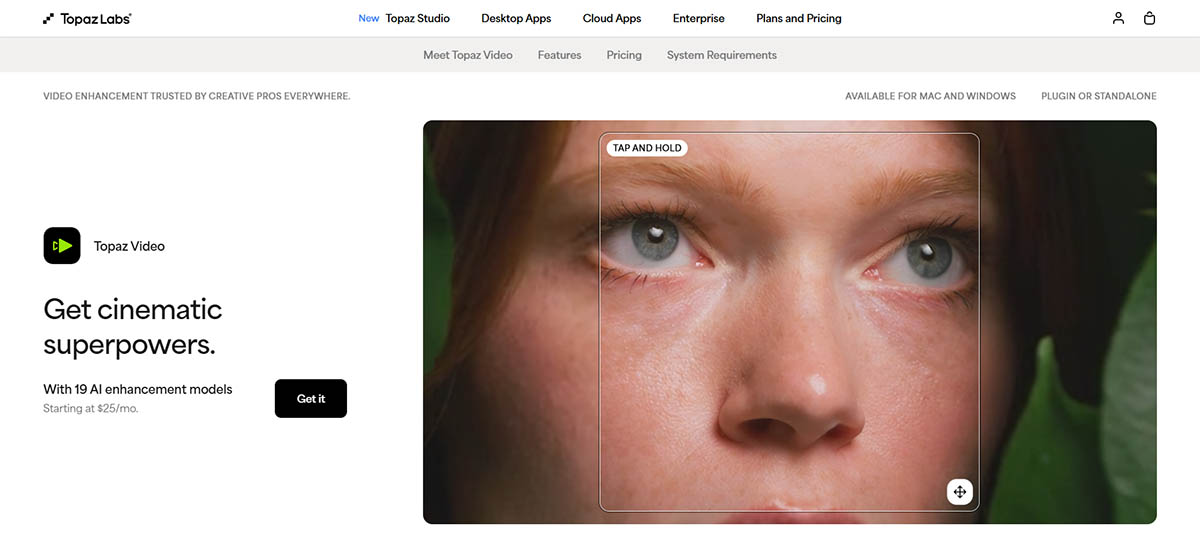
Topaz Video AI is the industry standard for professional video restoration. Its strength lies in specialized AI models like Proteus, Dione, and Iris, each optimized for specific content types and restoration challenges. The Proteus model allows granular fine-tuning of enhancement parameters, giving professionals precise control over the final output.
Key Features:
- Multiple specialized models (Proteus, Dione DV/TV, Iris, Artemis, Nyx)
- Face recovery and refinement for low-resolution portraits
- Temporal consistency algorithms for flicker-free results
- Batch processing for multiple videos
- Optional cloud rendering for heavy tasks (requires credits)
- Lifetime license option (one-time purchase)
Pros:
- Highest quality output when used correctly
- Extensive model selection for different content types
- Professional-grade face recovery
- Excellent for restoring old family videos (Dione TV model)
- Optional cloud rendering offloads intensive work to servers
- No subscription required with lifetime license (cloud rendering uses pay-as-you-go credits)
Cons:
- Requires powerful GPU for local processing (NVIDIA RTX series or Apple Silicon recommended)
- Very slow on mid-range hardware when processing locally (can take 24+ hours for long videos)
- Steep learning curve for optimal results
- High upfront cost for lifetime license (check current pricing on Topaz website)
- Cloud rendering requires additional credits (pay-as-you-go or monthly plans)
- Electricity costs for long local processing sessions
Best For: Professional editors, archivists restoring old footage, users with high-end GPUs who need maximum quality and control. Cloud rendering option makes it viable for users with weaker hardware who need occasional heavy processing.
Hardware Requirements: NVIDIA GPU with 6GB+ VRAM or Apple Silicon M1/M2. Minimum 16GB RAM recommended.
VideoProc Converter AI: Best Value-for-Money and Low-Spec Compatibility
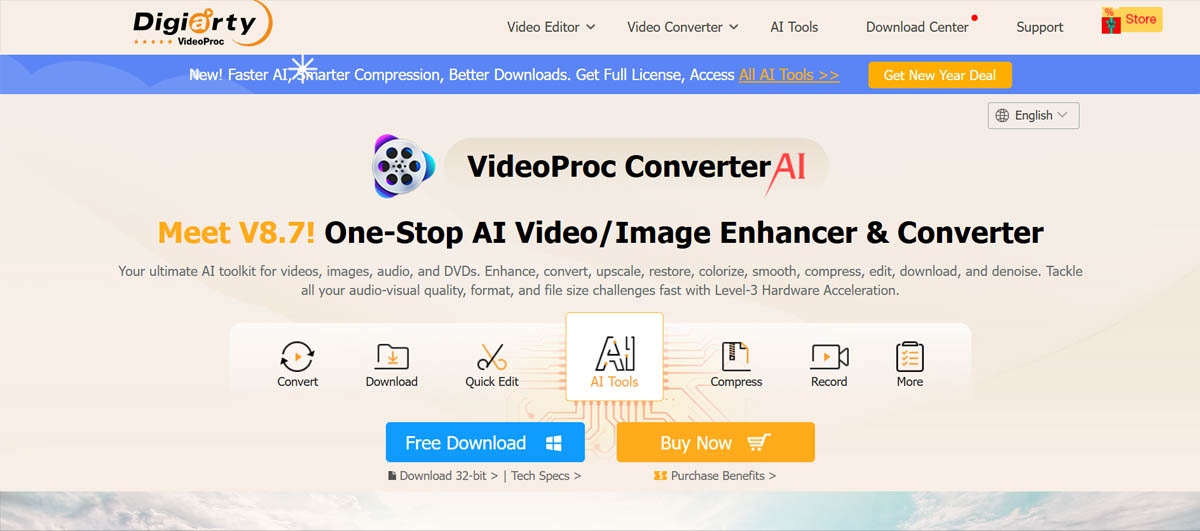
VideoProc Converter AI positions itself as the affordable alternative to Topaz, offering AI enhancement features at a lower price point with better compatibility for mid-range hardware. It uses optimized AI models that run more efficiently on lower-end GPUs, making it accessible to users who can't justify Topaz's hardware requirements.
Key Features:
- AI upscaling up to 4K
- Noise reduction and stabilization
- Batch processing
- Lower GPU requirements than Topaz
- One-time purchase option
Pros:
- More affordable than Topaz
- Works on mid-range hardware that Topaz struggles with
- Simpler interface for beginners
- Good value for money
- Lifetime license available
Cons:
- Lower quality output compared to Topaz
- Fewer specialized models
- Less control over enhancement parameters
- Face recovery not as advanced
Best For: Budget-conscious users, creators with mid-range hardware, those who need decent quality without professional-grade results.
Hardware Requirements: More lenient than Topaz. Works on NVIDIA GPUs with 4GB+ VRAM or integrated graphics (slower).
Aiarty: Best for Hair, Skin Texture, and Avoiding the "Uncanny Valley"
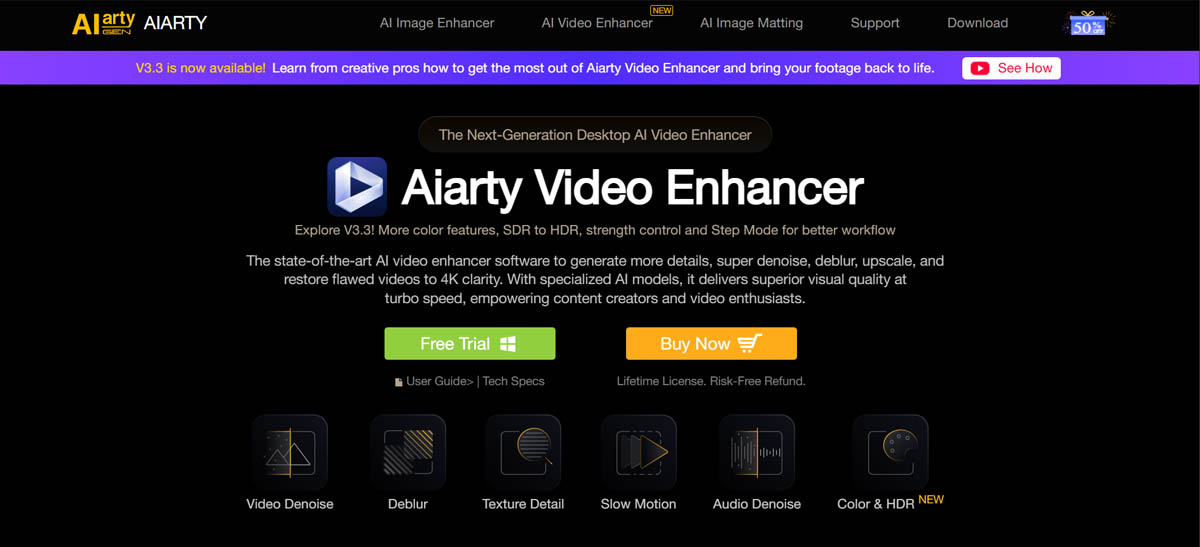
Aiarty specializes in preserving natural textures, particularly human features. Many AI enhancers create a "waxy skin" problem where faces look plastic and unnatural. Aiarty addresses this with texture preservation algorithms and a "texture preservation" slider that lets you control how much detail enhancement is applied.

Key Features:
- Texture preservation slider to avoid "waxy" look
- Specialized hair and skin enhancement
- Step mode for processing videos in tiles (works on low VRAM systems)
- Face refinement focus
- Batch processing
Pros:
- Best at preserving natural skin and hair textures
- Avoids the "uncanny valley" effect common in other tools
- Step mode allows 4K processing on low-end hardware
- Good for portrait and interview footage
- More affordable than Topaz
Cons:
- Less effective for non-human content
- Fewer models than Topaz
- Processing can be slower in step mode
- Less established brand
Best For: Content creators focusing on people, interview footage, anyone concerned about the "waxy skin" problem in AI enhancement.
Hardware Requirements: Flexible—step mode works on systems with limited VRAM by processing in tiles.
Best for Content Creators (Integrated Tools)
Not everyone needs a dedicated enhancement tool. Many video editors now include AI enhancement features, making separate software unnecessary for basic upscaling and denoising.
CapCut & Canva: Why You Might Not Need a Dedicated Enhancer
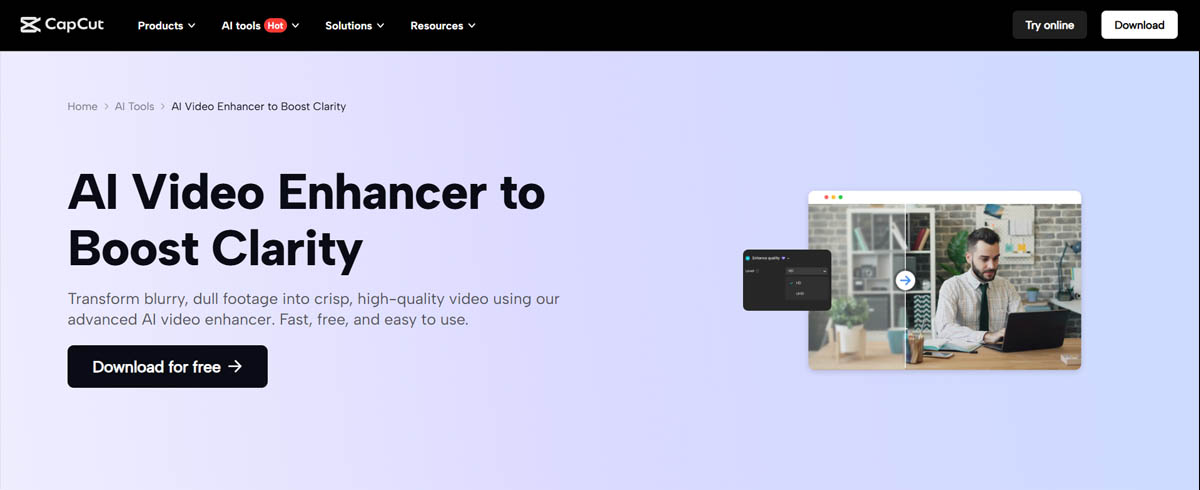
CapCut and Canva have integrated AI enhancement features that handle basic upscaling and quality improvement. If you're already using these tools for editing, their built-in enhancement might be sufficient, eliminating the need for separate software.
CapCut AI Features:
- AI upscaling
- Noise reduction
- Automatic enhancement
- Free to use
- Mobile and desktop versions
Canva Video Enhancement:
- Basic upscaling
- Quality improvement
- Integrated with design workflow
- Subscription-based
Pros:
- No additional software needed
- Integrated workflow
- Free (CapCut) or included in subscription (Canva)
- Good enough for social media content
- Easy to use
Cons:
- Lower quality than dedicated tools
- Limited control over enhancement
- Not suitable for professional restoration
- Canva requires subscription
Best For: Social media creators, casual users, anyone already using CapCut or Canva for editing.
DaVinci Resolve (Super Scale): The Pro-Editor's Hidden Secret
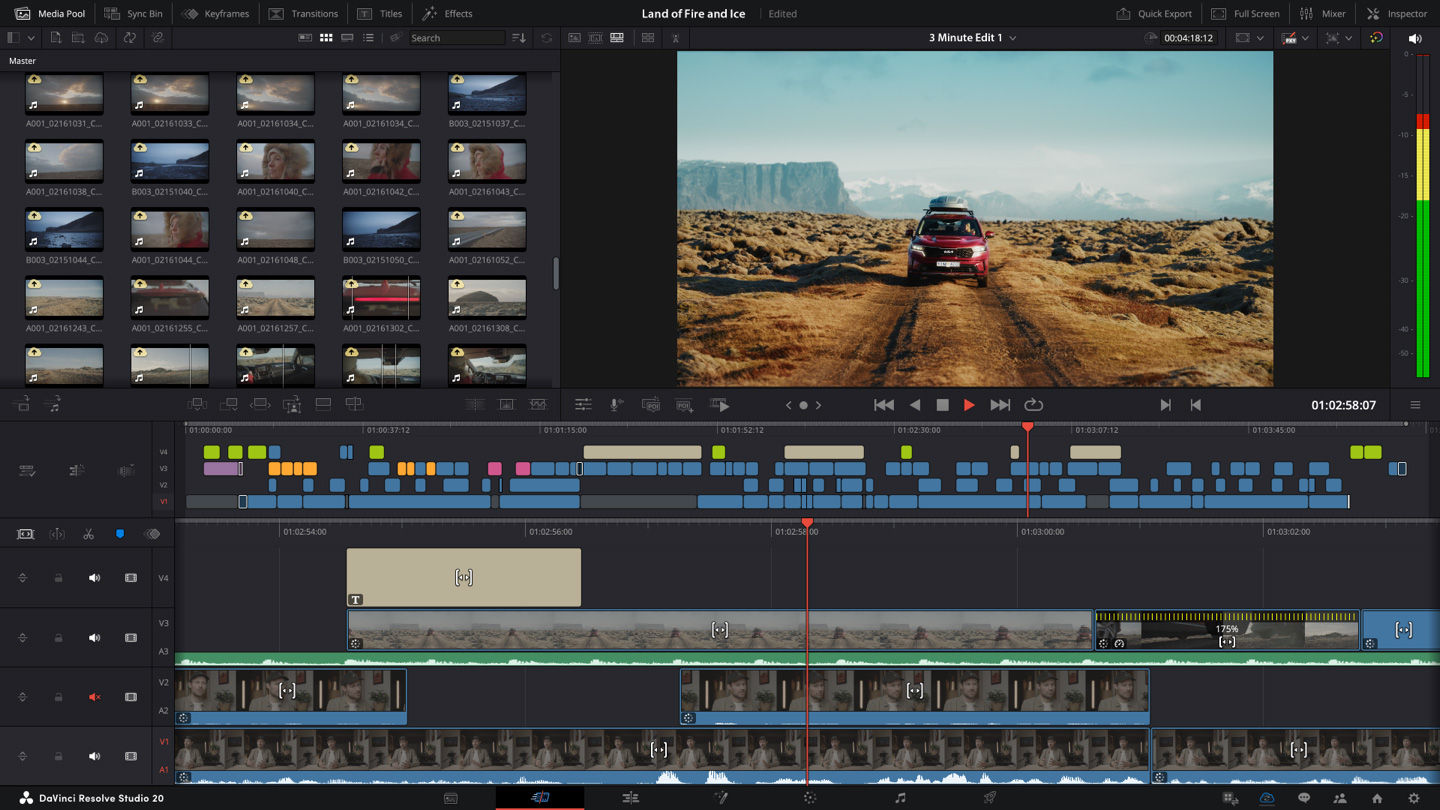
DaVinci Resolve's Super Scale feature is often overlooked, but it's a powerful upscaling tool built into professional editing software. It's completely free and uses AI to upscale footage up to 4x, making it an excellent option for editors already using Resolve.
Key Features:
- AI upscaling up to 4x
- Integrated with professional editing workflow
- Free (DaVinci Resolve is free)
- GPU-accelerated processing
- Works within your existing project
Pros:
- Completely free
- No separate software needed
- Professional-grade results
- Integrated workflow
- Regular updates
Cons:
- Requires learning DaVinci Resolve (steep learning curve)
- Processing happens during export (slower workflow)
- Less specialized than dedicated tools
- Requires powerful hardware for best results
Best For: Professional editors already using DaVinci Resolve, anyone willing to learn Resolve for free enhancement.
Best Online/Cloud Enhancers (No Install Required)
Cloud-based enhancers eliminate hardware requirements by processing videos on remote servers. This makes professional-quality enhancement accessible to anyone with an internet connection, but introduces considerations around privacy, upload time, and subscription costs.
Note: Topaz Video AI also offers optional cloud rendering for heavy tasks, using a credit system. This allows users with weaker hardware to offload intensive processing to Topaz's servers while maintaining the software's local processing capabilities for privacy-focused work.
Video Quality Enhancer: Best Cloud Solution for Professional Results
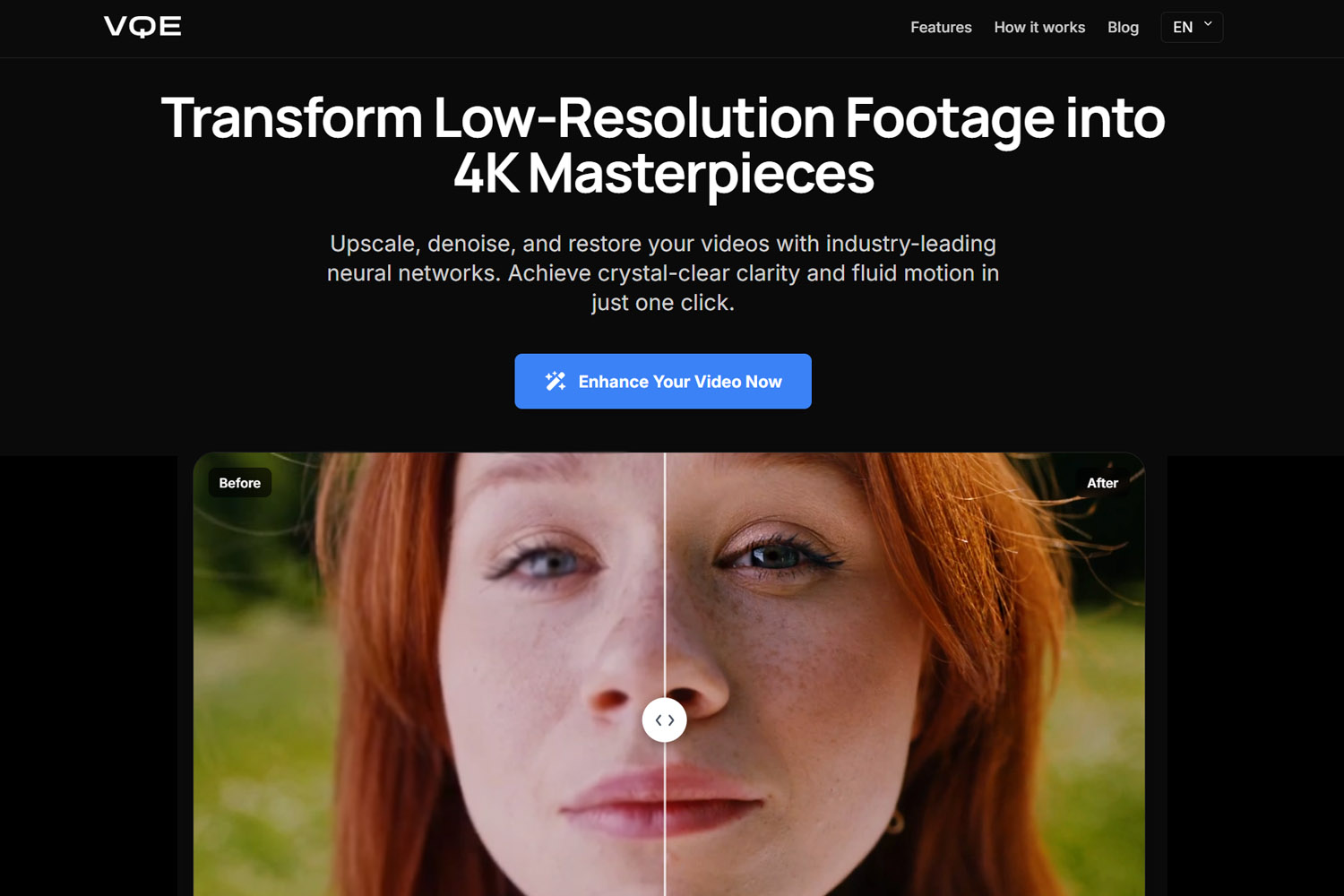
Video Quality Enhancer brings professional-grade AI enhancement to the cloud, using advanced AI models for upscaling, denoising, and face recovery without requiring local GPU power. This makes it ideal for users who want professional-quality results but don't have the hardware or prefer cloud processing for privacy and convenience.
Key Features:
- Advanced AI models for upscaling, denoising, and restoration
- Face recovery and refinement
- Temporal consistency for flicker-free results
- No hardware requirements
- Web-based interface
- Secure cloud processing
Pros:
- Professional-quality results without GPU requirements
- No software installation
- Works on any device with internet
- Secure processing (files deleted after processing)
- Professional-grade face recovery
- Temporal consistency algorithms
Cons:
- Requires internet connection
- Upload time for large files
- Processing queue during peak times
- Subscription or pay-per-use pricing
Best For: Users who want professional-quality enhancement without hardware investment, professionals needing occasional enhancement, anyone prioritizing convenience and security.
Pixop: Best for Corporate/Secure Cloud Processing
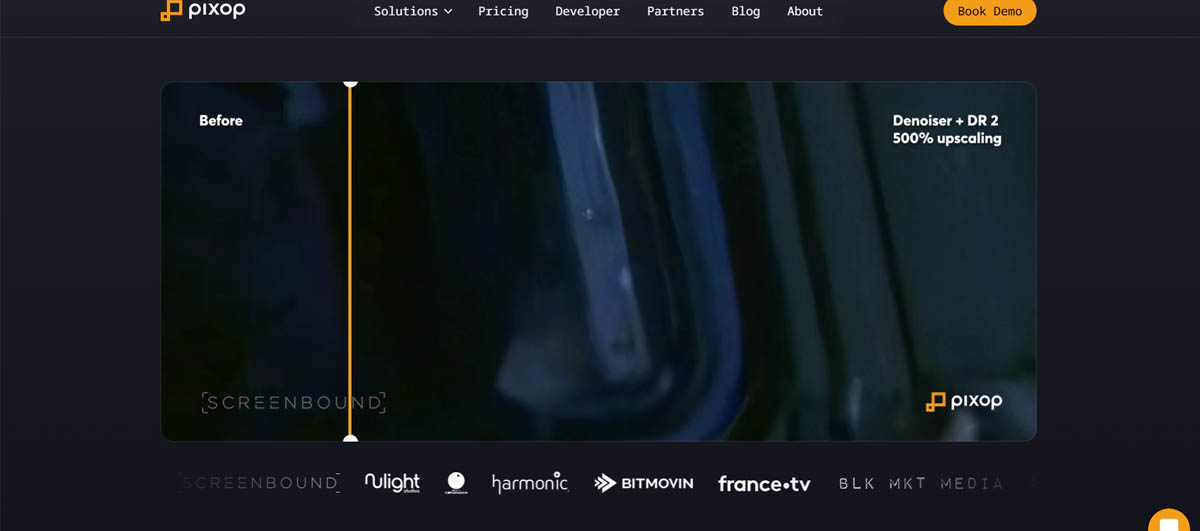
Pixop focuses on enterprise and corporate use cases, offering enhanced security and privacy controls for sensitive content. If you're processing corporate videos or client work, Pixop's security features and terms of service are more suitable than consumer-focused tools.
Key Features:
- Enterprise-grade security
- Custom privacy controls
- High-quality AI enhancement
- API access for automation
- Compliance with data protection regulations
Pros:
- Better security than consumer tools
- Suitable for corporate use
- Clear privacy terms
- API for workflow integration
- Compliance-focused
Cons:
- More expensive than consumer tools
- Overkill for personal use
- Enterprise-focused pricing
Best For: Corporate users, agencies handling client content, anyone with strict privacy requirements.
TensorPix: Best for Quick Social Media Clips on the Go
TensorPix is optimized for speed and convenience, making it ideal for quick social media enhancement. It processes videos faster than other cloud solutions, though with slightly lower quality than premium options.
Key Features:
- Fast processing
- Mobile-friendly interface
- Social media optimization
- Quick upscaling
- Affordable pricing
Pros:
- Very fast processing
- Easy to use
- Good for social media
- Mobile-friendly
- Affordable
Cons:
- Lower quality than premium tools
- Limited advanced features
- Less suitable for professional work
Best For: Social media creators, quick enhancements, mobile users, casual content creators.
Comparison: AI Upscaling vs. Traditional Sharpening
Understanding the difference between AI upscaling and traditional methods helps you appreciate why modern tools produce better results and when each approach makes sense.
Visual Breakdown: Why AI "Hallucination" is Better Than "Bicubic Stretching"
Traditional upscaling methods like bicubic interpolation simply stretch existing pixels across a larger canvas. If you have a 1080p image and want 4K, the algorithm creates four pixels from each original pixel using mathematical interpolation. The result is larger but not sharper—you're spreading the same limited information across more pixels.
AI upscaling uses neural networks trained on millions of video frames to predict what higher-resolution footage would look like. The AI analyzes patterns and textures to create new detail, generating information that fits the content type. This "hallucination" is actually educated prediction based on training data, producing results that look more natural than pixel stretching.
The key difference: Traditional methods preserve what exists but don't add new information. AI methods predict and generate plausible detail, which works well for natural content but can introduce artifacts if the source material is too low quality.
How to Choose (The 5-Step Checklist)
Use this checklist to narrow down your options based on your specific needs and constraints.
1. Does It Support Batch Processing?
If you're enhancing multiple videos, batch processing is essential. Processing videos one at a time becomes impractical when you have dozens or hundreds of files. Most professional tools support batch processing, but some cloud solutions have limitations.
Tools with Strong Batch Processing:
- Topaz Video AI
- VideoProc Converter AI
- Video Quality Enhancer (cloud-based)
- Aiarty
2. Is It a Lifetime License or Subscription?
Pricing models vary significantly. Lifetime licenses require a higher upfront cost but save money long-term, while subscriptions offer lower initial costs but accumulate over time. Consider how often you'll use the tool.
Lifetime License Options:
- Topaz Video AI (check current pricing on Topaz website)
- VideoProc Converter AI (varies)
- Aiarty (varies)
Subscription Options:
- Video Quality Enhancer (cloud-based)
- Pixop
- TensorPix
- Canva (includes enhancement)
3. Does It Have Face Recovery? (Crucial for Low-Res Interviews)
Face recovery is a game changer for footage with people. Without it, backgrounds might look 4K while faces remain blurry, creating a jarring "mask" effect. If your videos contain people, especially in interviews or portraits, face recovery is essential.
Tools with Advanced Face Recovery:
- Topaz Video AI (Iris model)
- Video Quality Enhancer (advanced face refinement)
- Aiarty (specialized focus)
4. What Are the Hardware Requirements?
Desktop software requires powerful GPUs, while cloud solutions eliminate hardware requirements. Assess your current hardware and whether you're willing to invest in upgrades.
High GPU Requirements:
- Topaz Video AI (NVIDIA RTX or Apple Silicon recommended)
- DaVinci Resolve Super Scale (for best results)
Moderate/Low Requirements:
- VideoProc Converter AI
- Aiarty (with step mode for low VRAM)
No Requirements:
- All cloud solutions (Video Quality Enhancer, Pixop, TensorPix)
5. What About Privacy and Terms of Service?
This is a massive gap most reviews ignore. Many free online enhancers claim ownership or usage rights of your uploaded videos to train their AI models. If you're processing private family memories or corporate content, this is a critical consideration.
Privacy Considerations:
- Desktop software: Your videos never leave your computer
- Cloud solutions: Check terms of service carefully
- Enterprise tools (Pixop): Better privacy guarantees
- Video Quality Enhancer: Files deleted after processing, secure cloud processing
Warning: Always read terms of service for cloud tools. Some free services use your videos to train their AI, which means your content could be used to improve their models.
The "Waxy Skin" Problem: What Most Reviews Miss
Many AI enhancers make human skin look like plastic, creating an unnatural "waxy" appearance that's immediately noticeable. This happens when AI over-enhances textures, removing natural variations that make skin look real.
Tools that address this:
- Aiarty: Texture preservation slider specifically designed to avoid waxy skin
- Topaz Video AI: Newer models (Proteus) allow fine-tuning to preserve natural textures
- Video Quality Enhancer: Advanced texture preservation to maintain natural skin appearance
The Solution: Look for tools with texture preservation controls or models specifically trained to maintain natural skin appearance. The "texture preservation" slider in tools like Aiarty lets you balance enhancement with natural appearance.
The "Hidden" Costs of Enhancement
Most reviews mention software prices but ignore other costs that add up over time.
Electricity Costs
Processing long videos on desktop software can run for 24+ hours, consuming significant electricity. On a mid-range laptop, processing an hour of footage might cost $2-5 in electricity, depending on your rates. This adds up when processing multiple videos.
Time Investment
Processing time is a real cost. If a video takes 24 hours to process, that's a full day you can't use your computer for other work. Cloud solutions eliminate this by processing on remote servers, but introduce upload time and potential queue waits.
Storage Costs
Enhanced videos are 5-10x larger than originals. A 1GB video might become 5-10GB after enhancement. If you're processing many videos, storage costs (cloud or local) become significant.
The "Step Mode" Insight: Processing on Low-End Hardware
Some tools (like Aiarty) offer "step mode" that processes video in tiles, allowing 4K enhancement on systems with limited VRAM. Instead of loading the entire frame into memory, the tool processes sections separately, making it possible to enhance high-resolution video on hardware that would otherwise crash.
This is particularly useful for users with:
- Laptops with integrated graphics
- Systems with 4GB or less VRAM
- Budget hardware that can't handle full-frame processing
Face Recovery: The Game Changer
If your video has people, face recovery is non-negotiable. Without it, you'll get enhanced backgrounds with blurry faces, creating a jarring disconnect. The background looks 4K, but faces stay low-resolution, making the entire video look worse than the original.
Why it matters: Human brains focus on faces. If faces are blurry while everything else is sharp, viewers immediately notice the problem. Face recovery models (like Topaz's Iris or Video Quality Enhancer's advanced face refinement) specifically enhance facial features while maintaining natural appearance.
Interlaced Video (VHS): The Deinterlacing Requirement
Many modern tools fail at deinterlacing, which is essential for restoring old family tapes. VHS and other analog formats use interlaced scanning, where each frame is split into two fields. Modern displays expect progressive video, so interlaced footage needs deinterlacing before enhancement.
Tools with proper deinterlacing:
- Topaz Video AI: Dione models (Dione TV for analog, Dione DV for digital)
- Video Quality Enhancer: Advanced deinterlacing for analog formats
- FFmpeg with Yadif: Free but requires technical knowledge
Why it matters: If you're restoring old family tapes, you need a tool that mentions Dione or Yadif support. Without proper deinterlacing, your enhanced video will have visible scan lines and artifacts.
Verdict: The Winner by Category
Best Overall Quality: Topaz Video AI or Video Quality Enhancer (cloud-based professional solution)
Best Value: VideoProc Converter AI or DaVinci Resolve Super Scale (free)
Best for Natural Skin: Aiarty (texture preservation slider)
Best for Beginners: CapCut (free, integrated) or VideoProc Converter AI
Best for Privacy: Desktop software (Topaz, VideoProc, Aiarty) or enterprise cloud (Pixop)
Best for Low-End Hardware: Cloud solutions (Video Quality Enhancer, TensorPix) or Aiarty with step mode
Best for Old Family Videos: Topaz Video AI or Video Quality Enhancer (advanced deinterlacing for analog formats)
Conclusion
Choosing the best video quality enhancer depends on your specific needs: hardware capabilities, budget, privacy requirements, and content type. Desktop software offers maximum quality and control but requires powerful hardware and significant time investment. Cloud solutions eliminate hardware requirements and make professional enhancement accessible to everyone, but introduce privacy and subscription considerations.
The key is matching the tool to your situation. If you have a high-end GPU and need maximum quality, Topaz Video AI is the industry standard. If you want professional-quality enhancement without hardware investment, Video Quality Enhancer offers cloud-based processing with advanced AI models. For budget-conscious users or those with mid-range hardware, VideoProc Converter AI or DaVinci Resolve offer excellent value.
Don't overlook hidden costs: processing time, electricity, storage, and privacy concerns. These factors often matter more than the software price itself. Consider your entire workflow, not just the tool's features, when making your decision.
The video enhancement landscape in 2025 offers more options than ever, from free integrated tools to professional cloud solutions. Understanding the trade-offs between quality, cost, convenience, and privacy helps you choose the right enhancer for your specific needs, ensuring you get the best results without unnecessary expense or compromise.