Best Apps to Enhance Video Quality 2026

Finding the best app to enhance video quality depends on what you're trying to fix and where you're working. Mobile apps offer convenience and on-the-go processing, while desktop software provides more control and higher quality results. Understanding the differences helps you choose the right tool for your specific needs.
This comprehensive guide ranks video enhancement apps by real-world results, covering everything from face restoration specialists to all-in-one social media tools. We'll explain how each app works, what it's best for, and the hidden limitations that most reviews don't mention.
Best Overall Video Quality Enhancer with AI
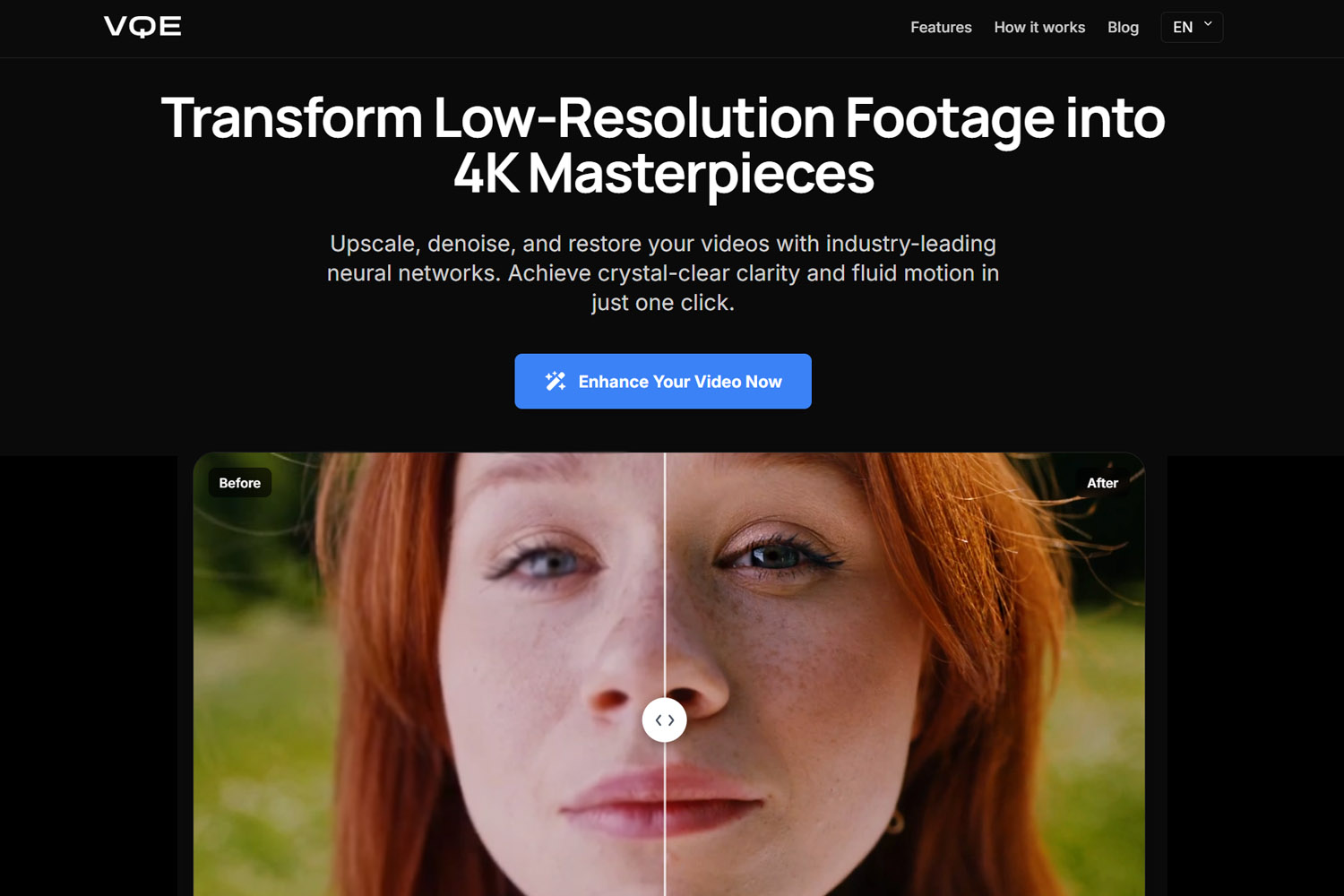
Video Quality Enhancer stands out as the best overall solution for professional-grade video enhancement accessible through any device. This cloud-based platform uses advanced AI models to upscale, denoise, and restore videos without requiring powerful local hardware, making professional-quality enhancement available to everyone.
How It Works: Video Quality Enhancer processes videos on secure cloud servers using neural networks trained on millions of video frames. The platform analyzes your video frame-by-frame with temporal consistency algorithms, ensuring flicker-free results that maintain stability throughout the entire sequence. This multi-frame analysis allows the AI to distinguish between noise and detail, removing one while preserving the other.
Key Advantages:
- No Hardware Requirements: Works on any device with internet access, eliminating the need for powerful GPUs
- Professional-Grade Results: Advanced AI models deliver quality comparable to expensive desktop software
- Face Recovery: Specialized models enhance facial features while maintaining natural appearance
- Temporal Consistency: Flicker-free processing that maintains stability across frames
- Secure Processing: Files are deleted after processing, with clear privacy policies
- Batch Processing: Handle multiple videos efficiently without local resource constraints
Best For: Users who want professional-quality enhancement without hardware investment, professionals needing occasional enhancement, anyone prioritizing convenience and security. The cloud-based approach makes it ideal for users who don't have powerful GPUs or prefer not to tie up their local hardware for hours of processing.
Introduction: Mobile vs. Desktop – What's the Difference?
The fundamental difference between mobile and desktop video enhancement apps comes down to processing power and workflow. Mobile apps prioritize convenience and quick fixes, while desktop software offers maximum quality and control.
The "Cloud Processing" Reality: Why Some Apps Need Internet to Work
Many mobile apps use cloud processing to handle intensive AI tasks, sending your video to remote servers for enhancement. This allows mobile apps to deliver desktop-quality results without requiring powerful local hardware, but it introduces considerations around internet connectivity, upload time, and privacy. For safety and privacy considerations with cloud processing, see our guide.
Cloud Processing Benefits:
- Access to powerful AI models without local hardware requirements
- Faster processing on mobile devices
- Automatic updates to AI models
- No battery drain from intensive local processing
Cloud Processing Limitations:
- Requires stable internet connection
- Upload time for large files
- Processing queues during peak times (wait times can be significant)
- Privacy considerations with data leaving your device
Understanding this distinction helps you choose apps that match your connectivity and privacy needs. Some apps offer both local and cloud processing options, giving you flexibility based on your situation.
Quick Summary: The "Right App for the Job"
Best for Social Media: CapCut or InShot (quick, free, integrated editing)
Best for Old Tapes: Remini or Video Quality Enhancer (face restoration and deinterlacing)
Best for Privacy: UpRes or local desktop software (100% on-device processing)
Best Overall Quality: Video Quality Enhancer or PowerDirector (professional results)
The "Face Restoration" Kings (Best for Blurry People)
Face restoration is one of the most challenging aspects of video enhancement, requiring specialized AI models trained specifically on human features. These apps excel at bringing back detail in blurry faces, making them essential for footage with people.
Remini: The Gold Standard for Facial Reconstruction
Remini has become the industry standard for facial reconstruction in photos and videos. The app uses advanced AI models specifically trained on human faces, allowing it to recover detail in blurry portraits that other tools can't handle.
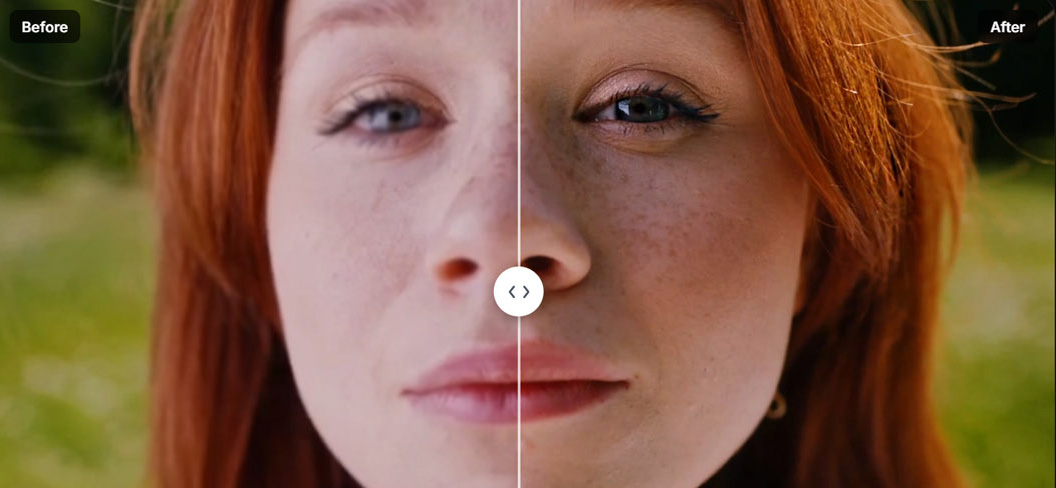
Key Features:
- Specialized face restoration AI
- Video enhancement up to 4K
- Batch processing for multiple videos
- Cloud processing (requires internet)
Pros:
- Best-in-class face restoration
- Excellent at recovering facial detail
- User-friendly interface
- Regular AI model updates
Cons:
- Cloud queue wait times (can be significant during peak hours)
- Free version has limitations (watermarks, lower resolution)
- Requires internet connection
- Processing can take time depending on queue
The "Cloud Queue" Reality: Many apps like Remini make you wait in a "queue" or watch ads before processing, which most articles don't mention. During peak times, you might wait several minutes before your video starts processing. This is the trade-off for free or low-cost cloud processing—you're sharing server resources with other users.
Best For: Restoring old family photos and videos with blurry faces, portrait enhancement, anyone prioritizing face quality over speed.
HiQuality / Utool: Alternatives for Unblurring Anime and Cartoons
HiQuality and Utool specialize in enhancing animated content, including anime and cartoons. These apps use AI models trained specifically on animated styles, making them better than general-purpose enhancers for cartoon content.
Key Features:
- Specialized models for animated content
- Anime and cartoon upscaling
- Style preservation
- Various enhancement options
Pros:
- Better results for animated content than general enhancers
- Preserves artistic style
- Good for anime restoration
- Multiple enhancement modes
Cons:
- Less effective for live-action content
- May require subscription for best results
- Processing time varies
Best For: Restoring old anime or cartoon footage, enhancing animated content, preserving artistic styles in cartoons.
Face Refinement: The Key Feature to Look For
When choosing a face restoration app, look for "Face Refinement" or "Face Recovery" as a key feature. This indicates the app uses specialized AI models trained on human anatomy, which is essential for natural-looking results.
Why It Matters: General upscalers treat faces like any other texture, often creating a "waxy" or unnatural appearance. Face refinement models understand facial structure, skin texture, and features, allowing them to enhance faces while maintaining natural appearance. This is crucial because human brains focus on faces—if faces look wrong, the entire video feels off. For desktop tools with face recovery capabilities, see our comprehensive comparison.

Apps with Strong Face Refinement:
- Remini (specialized focus)
- Video Quality Enhancer (advanced face recovery models)
- PowerDirector (face enhancement features)
The All-in-One Social Powerhouses
These apps combine video enhancement with editing features, making them ideal for social media creators who need quick, integrated workflows.
CapCut: The Best "Free" Path to 4K
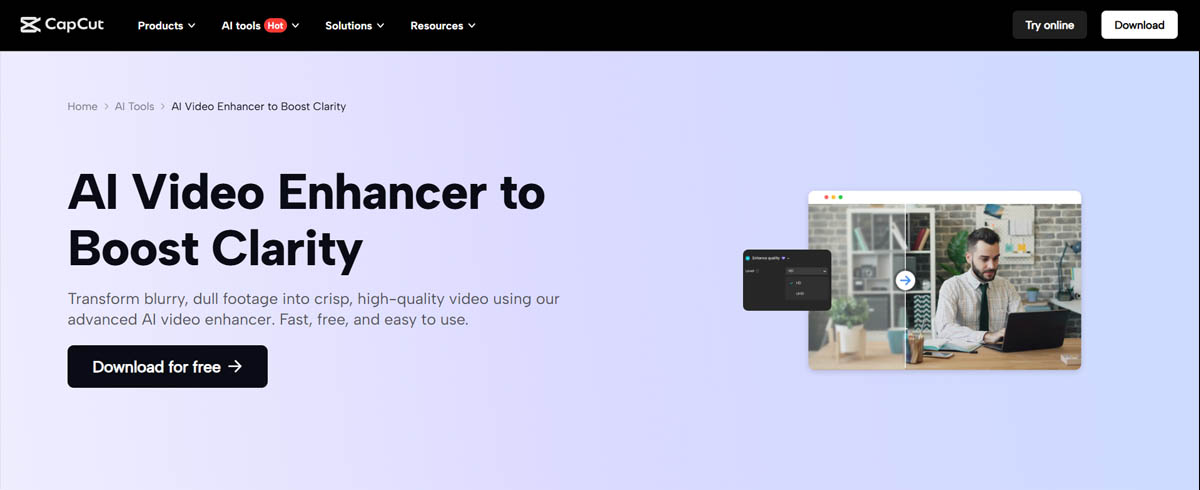
CapCut has become the go-to free video editor with built-in AI enhancement features. The app's "Image Quality" tool can upscale videos to 4K and improve overall quality, making it an excellent option for social media creators.
Key Features:
- Free 4K upscaling
- Integrated video editing
- AI enhancement tools
- Social media optimization
- No watermarks on exports
Pros:
- Completely free
- No watermarks
- Integrated editing workflow
- Good for social media
- Regular feature updates
Cons:
- Cloud processing (requires internet)
- Queue times during peak usage
- Less specialized than dedicated enhancers
- Limited advanced controls
The "Image Quality" Tool: CapCut's "Image Quality" enhancement tool uses AI to upscale and improve video quality, making it accessible within your editing workflow. This integration means you can enhance and edit in one app, saving time compared to using separate tools.
Best For: Social media creators, quick video improvements, anyone wanting free 4K upscaling without watermarks.
InShot: Best for Aesthetic Filters and Quick Lighting Fixes
InShot focuses on quick aesthetic improvements rather than deep AI enhancement. The app excels at color correction, lighting fixes, and applying filters that make videos look more professional without intensive processing.
Key Features:
- Color correction tools
- Lighting adjustment
- Aesthetic filters
- Quick enhancement presets
- Social media formats
Pros:
- Fast processing
- Easy to use
- Good for quick fixes
- Affordable pricing
- No learning curve
Cons:
- Less powerful than AI-focused apps
- Limited upscaling capabilities
- Focused on aesthetics over detail recovery
- Subscription for advanced features
Best For: Quick aesthetic improvements, social media content, lighting and color fixes, users who prioritize speed over maximum quality.
YouCam Video: The Niche Leader for "Beautification" and Makeup Enhancement
YouCam Video specializes in video beautification, including virtual makeup and skin smoothing. The app uses AI to enhance appearance in videos, making it popular for vloggers and content creators who want polished on-camera appearance.
Key Features:
- Virtual makeup application
- Skin smoothing and enhancement
- Real-time beautification
- Face tracking and enhancement
- Various beauty filters
Pros:
- Best-in-class beautification
- Real-time processing
- Natural-looking results
- Good for vlogging
- Easy to use
Cons:
- Specialized use case (beautification)
- Less effective for general enhancement
- May require subscription
- Processing can be resource-intensive
Best For: Vloggers, beauty content creators, anyone wanting real-time appearance enhancement in videos.
Pro-Level Engineering on Mobile
These apps bring professional-grade features to mobile devices, offering desktop-quality tools in portable form.
PowerDirector: The Best for "Denoising" and "Video Stabilization"
PowerDirector brings professional video editing and enhancement features to mobile. The app excels at denoising and video stabilization, making it ideal for fixing common mobile video problems.
Key Features:
- Advanced denoising algorithms
- Professional stabilization
- Color grading tools
- Multiple export options
- SDR to HDR conversion
Pros:
- Professional-grade features
- Excellent denoising
- Strong stabilization
- Good color tools
- Regular updates
Cons:
- Steeper learning curve
- Requires subscription for full features
- Can be resource-intensive
- More complex than simple apps
SDR to HDR Conversion: PowerDirector is one of the apps that can actually make colors pop by simulating High Dynamic Range, a hot 2025 feature. This creates more vibrant, contrast-rich footage that looks more professional, even from standard SDR source material.
Best For: Professional mobile editors, users needing advanced denoising and stabilization, anyone wanting desktop-quality tools on mobile.
DaVinci Resolve for iPad: Hollywood-Grade Color Grading on a Tablet
DaVinci Resolve for iPad brings the professional color grading capabilities of the desktop version to tablets. The app offers Hollywood-grade color tools, making it possible to do professional color work on a portable device.
Key Features:
- Professional color grading
- Advanced color correction
- Professional editing tools
- High-quality export options
- Free version available
Pros:
- Professional-grade color tools
- Free version with many features
- Industry-standard software
- Excellent color grading
- Regular updates
Cons:
- Steep learning curve
- Requires iPad (not available on other tablets)
- More complex than consumer apps
- Best results require practice
Best For: Professional colorists, serious video editors, anyone wanting professional color grading on a tablet.
The "Privacy First" Option (The 2025 Trend)
Privacy-focused apps process videos entirely on your device, ensuring your content never leaves your phone or tablet. This "On-Device" AI approach is becoming the 2025 trend for sensitive or family videos.
UpRes: Highlighting Apps That Process 100% Locally
UpRes and similar privacy-first apps process videos entirely on your device. This means your videos never leave your phone or tablet, providing maximum privacy and security.
Key Features:
- 100% local processing
- No internet required
- Complete privacy
- On-device AI models
- No data transmission
Pros:
- Maximum privacy
- No internet required
- No cloud queues
- Complete data control
- Works offline
Cons:
- Requires powerful device
- Can drain battery quickly
- May heat up device
- Processing can be slower
- Limited by device capabilities
Why "On-Device" AI is the Future for Sensitive Videos: For sensitive content—family videos, children, private moments—on-device processing ensures your content never leaves your device. This eliminates risks of data breaches, unauthorized access, or content being used for AI training. As mobile processors become more powerful, on-device AI is becoming viable for more users.
Best For: Privacy-conscious users, sensitive content, family videos, anyone who doesn't want their videos processed in the cloud.
Watermark Traps: The "Free" Reality
Many apps claim to be "Free" but hide the high-res export behind a watermark or subscription paywall. Understanding this helps you choose apps that match your budget and needs.
Watermark vs. No Watermark Comparison
Free with Watermarks:
- Remini (free version)
- Many basic enhancers
- Trial versions of paid apps
Free without Watermarks:
- CapCut
- DaVinci Resolve (free version)
- Some open-source tools
Paid without Watermarks:
- Video Quality Enhancer (subscription)
- PowerDirector (subscription)
- Most professional apps
The Reality: Free apps often add watermarks to exports or limit resolution, while paid apps provide watermark-free, high-resolution exports. Understanding this trade-off helps you choose based on your needs: free apps work for testing or personal use, while paid apps are necessary for professional work.
Step-by-Step: How to Use an App to Actually Fix a Video
Following the right sequence maximizes enhancement quality and avoids common mistakes.
Step 1: Clean the Noise (Denoise)

Start by removing noise and grain from your video. This gives the AI cleaner source material to work with, improving results in later steps. Denoising should happen before upscaling to prevent the AI from trying to enhance noise along with detail.
Why First: Noise can confuse upscaling algorithms, leading to artifacts. Removing noise first ensures the AI has clean source material for enhancement, producing better final results.
Step 2: Rebuild the Details (Upscale)
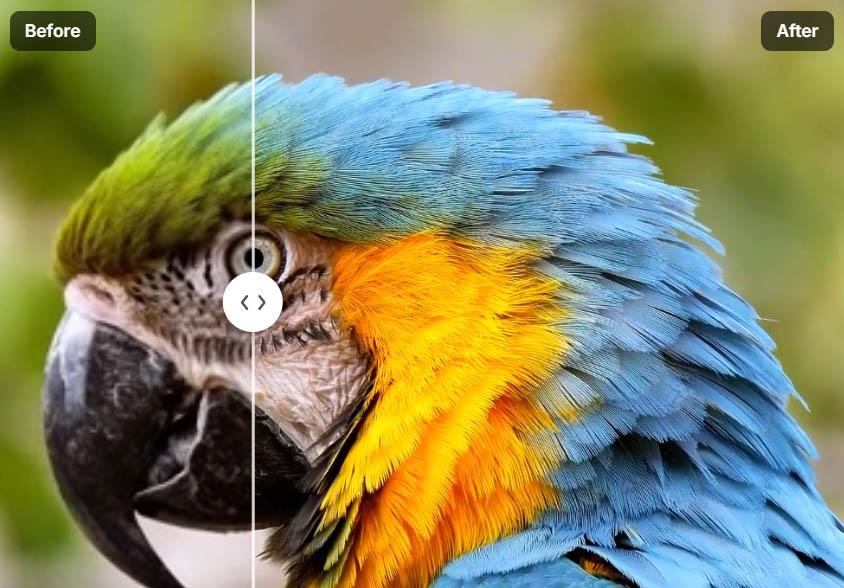
After denoising, upscale the video to your target resolution. With clean source material, the AI can focus on creating detail rather than dealing with noise. This step-by-step approach prevents the AI from getting overwhelmed by multiple problems simultaneously.
The Multi-Step Advantage: Processing in steps (denoise, then upscale) produces better results than doing everything at once. Each step gives the AI cleaner input, leading to more accurate enhancement.
Step 3: Export with the Right Bitrate (The Step Everyone Skips)
Export with appropriate bitrate settings for your target resolution and platform. Many users skip this step, exporting with default settings that are too low, which destroys the quality improvements they just made.
Bitrate Guidelines:
- 1080p: 8-12 Mbps minimum
- 4K: 35-50 Mbps minimum
- Social Media: Match platform recommendations
- Professional: Higher bitrates for archival quality
Why It Matters: Low bitrate exports compress away the detail you just enhanced, making all your enhancement work pointless. Proper bitrate settings preserve the quality improvements through the export process.
Non-Generic Pro Tips
The "Double App" Method: Combining Best AI with Best Editor
Use Remini first just to fix the faces, then move to CapCut to do the final color grading and export. This combines the best AI face restoration with the best free editor, giving you professional results without paying for premium software.
How It Works:
- Process faces in Remini (best face restoration)
- Import to CapCut for color grading and editing
- Export with proper settings in CapCut
This method leverages each app's strengths, giving you better results than using either app alone.
Heat Management: Protecting Your Device
AI enhancement apps can make a phone very hot and drain 20% battery in minutes. This is normal for intensive processing, but you can minimize the impact.
Best Practices:
- Close background apps before starting
- Process in shorter sessions
- Let device cool between sessions
- Use cloud processing when available (reduces local heat)
- Charge device during processing if possible
Warning Signs:
- Device becomes uncomfortably hot
- Battery drains extremely quickly
- Performance degrades significantly
- Apps crash or freeze
If your device gets too hot, pause processing and let it cool down before continuing.
The 1-Minute Limit: Working Within Free Tiers
Many mobile AI apps have a 60-second limit for free users. Understanding this limitation helps you work within free tiers effectively.
The Solution: Split your long videos into 60-second clips before processing to stay within the free tier. You can process each clip separately, then combine them in a video editor. This approach lets you use free tiers for longer videos without paying for subscriptions.
Tools for Splitting:
- CapCut (free video splitting)
- Built-in phone video editors
- QuickTime (Mac)
- Various free apps
This workaround makes free tiers viable for longer videos, though it requires more manual work than paid subscriptions.
Verdict: Which App Should You Download?
Best Overall: Video Quality Enhancer for professional-quality results without hardware requirements
Best for Faces: Remini for specialized face restoration (be prepared for queue times)
Best Free Option: CapCut for free 4K upscaling without watermarks
Best for Privacy: UpRes or local desktop software for 100% on-device processing
Best for Social Media: CapCut or InShot for quick, integrated workflows
Best for Professional Mobile Editing: PowerDirector or DaVinci Resolve for iPad
Best for Beautification: YouCam Video for real-time appearance enhancement
Conclusion: Choosing the Right App for Your Needs
The best video enhancement app depends on your specific needs: quality requirements, privacy concerns, budget, and device capabilities. Mobile apps offer convenience and quick fixes, while cloud solutions like Video Quality Enhancer provide professional quality without hardware requirements.
Understanding the trade-offs helps you make informed decisions. Free apps often have limitations (watermarks, queues, time limits), while paid apps provide better results and features. Privacy-focused apps process locally but require more powerful devices, while cloud apps offer convenience but introduce privacy considerations.
The key is matching the app to your situation: quick social media fixes favor integrated editors like CapCut, while professional work benefits from specialized tools. Privacy-sensitive content requires local processing, while convenience-focused use can leverage cloud solutions.
The 2025 video enhancement landscape offers more options than ever, from free mobile apps to professional cloud platforms. By understanding each app's strengths, limitations, and hidden costs, you can choose the right tool for your specific needs and achieve the best possible results.