Can ChatGPT Enhance Video Quality?

ChatGPT can't process video pixels directly, but it can play a crucial role in video enhancement workflows. The key is understanding where ChatGPT fits: it's excellent at reasoning, analysis, and automation, but it can't render frames like dedicated video tools. This guide shows you practical ways to use ChatGPT alongside video enhancement software to get better results faster.
We'll cover three main approaches: using ChatGPT with generative video tools like Sora, automating enhancement through scripts, and using ChatGPT as a quality control advisor. Each method serves different needs, and understanding when to use each helps you build efficient workflows.
Reasoning vs Rendering: Why ChatGPT Can't Process Pixels
ChatGPT is a language model that reasons about video, but it can't render frames like a GPU. This distinction matters because it explains what ChatGPT can and cannot do in video enhancement workflows.
When you describe a video problem to ChatGPT, it understands your description as text and can reason about solutions. It can analyze quality issues, recommend tools, and explain technical concepts. But it can't process the actual video frames—that requires specialized hardware and neural networks trained specifically for visual processing.
Visual analysis is what ChatGPT does well. It can look at a video description or uploaded frame and identify problems like digital noise, motion blur, or bad lighting. It can reason about what might be causing these issues and suggest solutions.
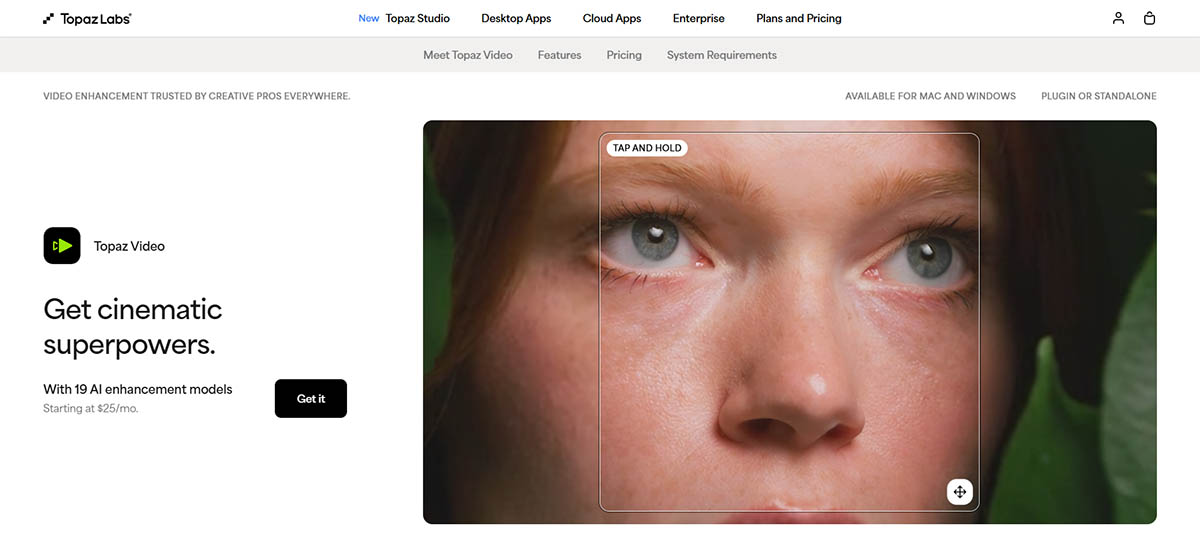
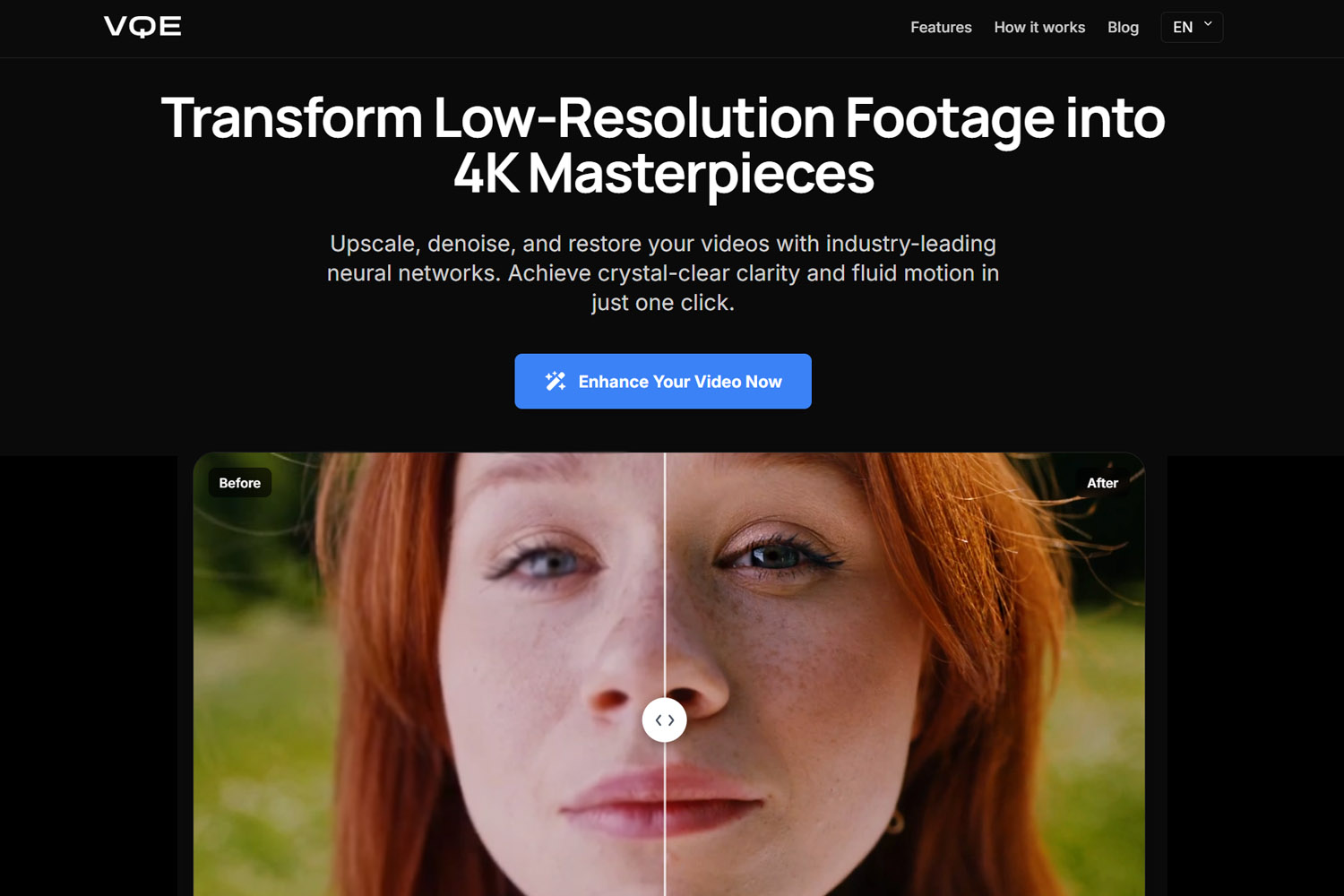
Frame interpolation and pixel processing require dedicated tools like Topaz Video AI, Aiarty, or Video Quality Enhancer. These tools use specialized neural networks that process millions of pixels per second, something ChatGPT's architecture simply can't do. Understanding how these tools actually work helps you see why ChatGPT can guide but not execute the enhancement.
Understanding this division helps you use ChatGPT effectively. Use ChatGPT for planning, analysis, and automation. Use dedicated tools for actual video processing. This combination produces the best results.
Method 1: Generative Enhancement with Sora
ChatGPT Pro users can access Sora, OpenAI's generative video model, which can create or enhance video through text prompts. This approach is different from traditional upscaling—instead of enhancing existing footage, Sora generates new video based on your description.
How It Works
You describe the high-definition details you want, and Sora generates video that matches your description. This is useful when you want to recreate a scene with better quality rather than enhance the original footage. The AI "dreams up" detail based on your prompt, creating new video rather than improving existing frames.
Prompting for resolution means describing the quality you want. Instead of saying "make this video sharper," you describe what a high-quality version would look like: "a crisp 4K scene with sharp details, natural lighting, and clear textures." Sora then generates video matching that description.
This approach works best for creative projects where you're okay with the AI recreating the scene rather than enhancing the original. For archival footage or situations where accuracy matters, traditional enhancement tools are better because they work with your existing frames rather than generating new ones.
When to Use Generative Enhancement
Generative enhancement makes sense when you want to recreate a scene with better quality and you're comfortable with the AI generating new detail. It's particularly useful for creative projects, social media content, or situations where the exact original footage isn't critical.
For footage where accuracy matters—documentary work, family memories, or archival material—traditional enhancement tools like Topaz Video AI or Video Quality Enhancer are better because they enhance your existing frames rather than generating new ones. When working with blurry footage that needs deblurring, traditional enhancement maintains the original content while improving quality.

Method 2: Scripting Automation for Local Processing
ChatGPT can write Python or FFmpeg scripts that automate video enhancement on your local machine. This approach gives you control over the process while leveraging ChatGPT's ability to generate working code.
Getting Started with Enhancement Scripts
Ask ChatGPT to create a script for your specific needs. For example, you might say: "Write a Python script that uses FFmpeg to upscale a video from 1080p to 4K using AI upscaling filters." ChatGPT can generate the code, explain how it works, and help you customize it for your situation.
The advantage of local processing is privacy and cost control. Your videos never leave your computer, and you're not paying per minute of processing. The downside is that you need to set up the necessary tools and libraries, which requires some technical knowledge.
ChatGPT can guide you through the setup process, explain what each part of the script does, and help you troubleshoot issues. This makes local enhancement accessible even if you're not an expert programmer.
Setting Up Local AI Enhancement
While ChatGPT itself is cloud-based, it can help you set up local AI tools like Stable Video Diffusion so you don't have to pay for every minute of video enhanced. ChatGPT can explain the installation process, help you configure the tools, and generate scripts that automate the workflow.
This approach requires more initial setup, but it gives you complete control and eliminates ongoing costs. For users who process a lot of video, local processing can be more economical than cloud solutions.
Method 3: ChatGPT as Quality Control Advisor
ChatGPT can analyze video quality issues and recommend specific fixes, acting as a quality control advisor that helps you identify problems and choose the right solutions.
Upload and Analyze
With multimodal capabilities, you can upload video frames or describe quality issues, and ChatGPT can identify problems like digital noise, motion blur, or bad lighting. It can explain what's causing these issues and recommend whether you need upscaling, denoising, color correction, or other techniques.
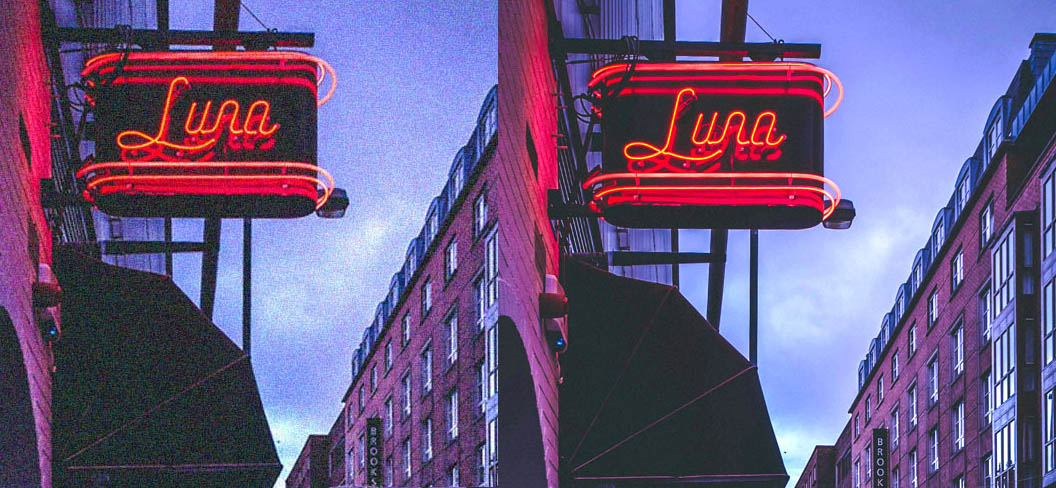
This analysis helps you understand your footage before choosing enhancement methods, saving time by avoiding approaches that won't work for your specific problems. Instead of guessing what might help, you get targeted recommendations based on your actual footage.
Getting Specific Settings
Once ChatGPT identifies the problems, you can ask for exact settings to use in Premiere Pro, DaVinci Resolve, or other editing software. ChatGPT can recommend specific filter settings, color correction values, or enhancement parameters based on the issues it identified.
For example, if ChatGPT identifies heavy digital noise, it can recommend specific denoising filter settings in your editor. If it sees motion blur, it can suggest sharpening parameters that work well for that type of blur. When dealing with blurry footage, ChatGPT can help you determine whether the blur is fixable and recommend the right deblurring approach. This turns ChatGPT into a practical advisor that gives you actionable settings rather than just general advice.
Understanding Quality Scores
ChatGPT can explain technical quality scores like VMAF or PSNR and help you understand what's causing low scores. If you have a quality score from a tool, ChatGPT can analyze what visual artifacts might be causing the low number and recommend specific fixes.
This is particularly useful when you're trying to improve video for platforms like YouTube or Netflix that use these metrics. ChatGPT can help you understand what the scores mean and what changes will improve them.
Privacy and Cost Considerations
Using ChatGPT for video enhancement introduces privacy and cost considerations that are worth understanding before you start.
Video Token Costs
Processing video through ChatGPT consumes tokens, and video tokens are more expensive than text tokens. Long videos or high-resolution footage can quickly consume your token budget, making this approach expensive for extensive processing.
For occasional analysis or short clips, the cost is manageable. But for processing entire videos or multiple clips, dedicated enhancement tools are typically more cost-effective. Understanding these costs helps you choose the right approach for your situation.
Privacy Warnings
Don't upload sensitive family videos or confidential content to ChatGPT for analysis. While OpenAI has privacy policies, uploading personal or sensitive content to cloud services always carries some risk. For private footage, use local tools or cloud solutions with strong privacy guarantees.
If you're working with sensitive content, use ChatGPT for general advice and guidance, but process the actual video with local tools or privacy-focused cloud solutions like Video Quality Enhancer, which deletes files after processing.
Practical Workflow Tips
These tips come from real-world experience using ChatGPT in video enhancement workflows.
The Reference Frame Strategy
Extract one perfect frame from your video, enhance it with DALL-E 3 or Midjourney, then ask ChatGPT how to use that frame as a style reference for the rest of the video in a tool like Sora. This approach gives you a visual target that the AI can match, producing more consistent results.
The enhanced frame serves as a quality reference, showing the AI what level of detail and style you want. ChatGPT can then help you craft prompts or settings that match that reference frame throughout your video.
Optimizing for Specific Displays
Ask ChatGPT: "I am exporting this for a 4K OLED screen; what is the mathematical sweet spot for my bitrate to avoid pixelation?" ChatGPT can calculate optimal bitrate settings based on your resolution, frame rate, and target display, giving you specific numbers rather than general recommendations.
This is particularly useful when you're optimizing video for specific platforms or displays. ChatGPT can factor in codec efficiency, display capabilities, and file size constraints to recommend optimal settings.
Audio-Visual Quality Perception
ChatGPT can suggest audio cleanup steps that make viewers perceive video as higher quality. Removing wind noise, improving dialogue clarity, or enhancing audio can make the entire video feel more professional, even if the visual quality is unchanged.
This works because viewers judge quality holistically. Clean, clear audio makes video appear sharper and more professional, even when the visual quality is the same. ChatGPT can recommend specific audio processing steps that complement your video enhancement.
Comparing Tools: Sora vs Veo 3
Most articles only mention OpenAI's tools, but understanding the differences between platforms helps you choose the right approach.
ChatGPT with Sora handles enhancement through generative recreation, creating new video based on your description. This works well when you want to recreate scenes with better quality and you're comfortable with generative approaches.
Gemini with Veo 3 is often better for creative multimodal tasks that combine video, images, and text in complex ways. If you're working on creative projects that need multimodal capabilities, Veo 3 might offer more flexibility.
For straightforward enhancement of existing footage, dedicated tools like Topaz Video AI or Video Quality Enhancer typically produce better results because they enhance your actual frames rather than generating new ones.
The Best Enhancement Stack
The best results come from using ChatGPT to plan the fix and dedicated tools to execute it. ChatGPT excels at analysis, recommendation, and automation, while dedicated tools excel at actual video processing.
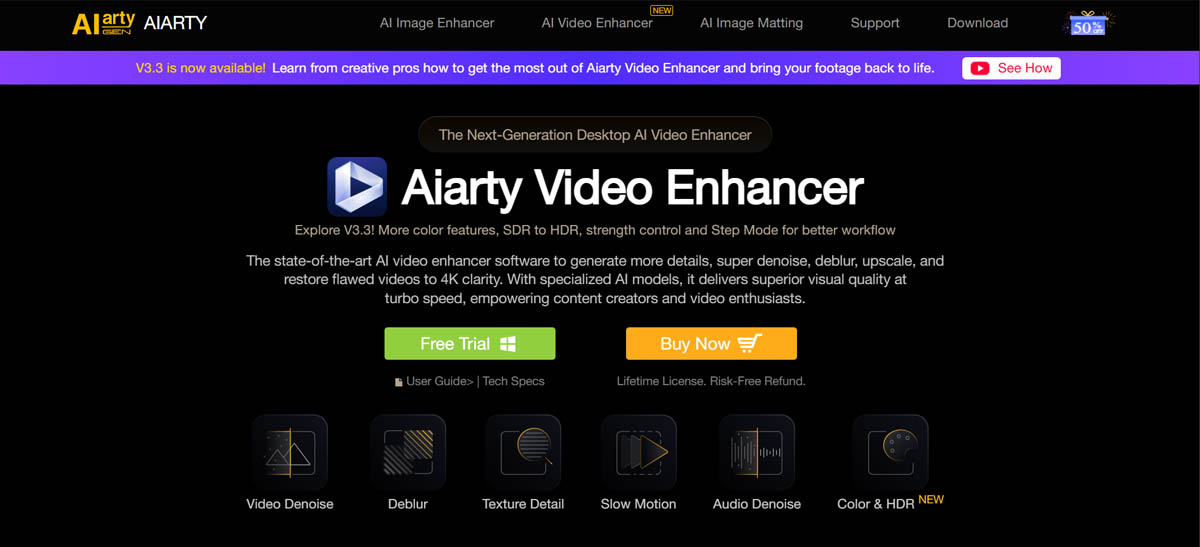
Use ChatGPT to identify problems, recommend approaches, generate scripts, and explain technical concepts. Then use dedicated tools like Topaz Video AI, Video Quality Enhancer, or Aiarty to actually process your footage. This combination leverages the strengths of both: ChatGPT's reasoning and dedicated tools' processing power.
ChatGPT is your planning and analysis layer. It helps you understand what's wrong, choose the right approach, and automate repetitive tasks. Dedicated enhancement tools are your execution layer. They actually process the pixels and produce the enhanced video.
Understanding this division helps you build efficient workflows. Don't try to make ChatGPT do what it can't do—use it for what it does well, and use dedicated tools for actual video processing.
Final Thoughts
ChatGPT can enhance video quality indirectly by guiding your workflow, analyzing problems, and automating tasks. It's excellent at reasoning about video but can't process pixels like dedicated tools. Understanding this distinction helps you use ChatGPT effectively as part of a larger enhancement workflow.
The most effective approach combines ChatGPT's analytical and automation capabilities with dedicated video processing tools. Use ChatGPT to plan, analyze, and automate. Use tools like Topaz Video AI or Video Quality Enhancer to actually process your footage. This combination produces the best results while leveraging each tool's strengths.
Understanding this division helps you build efficient workflows. Don't try to make ChatGPT do what it can't do—use it for what it does well, and use dedicated tools for actual video processing.